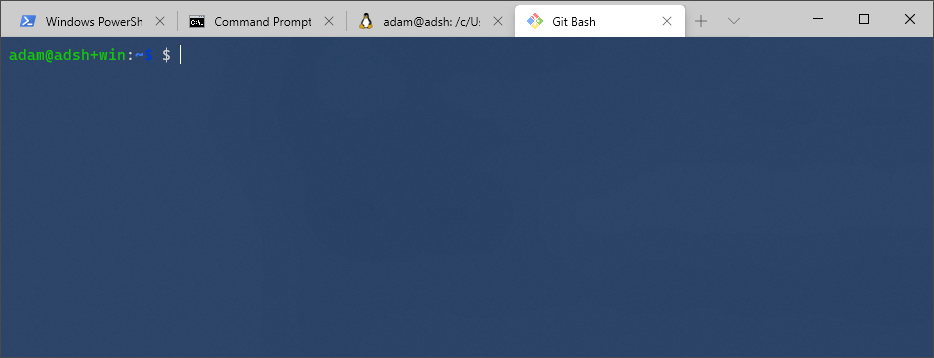
The Windows developer experience has evolved quite allot in the last 5-10 years. I now spend most of my development life running Windows with WSL2 and using Windows Terminal and winget. So here are a few pointers from my experiences so far.
WSL (WSL2)
WSL2 is what you want! The first version of WSL was a step in a great direction, but had many cons, such as IO performance. It should be fairly easy to install and will provide you a full Linux Kernel accessible from within Windows.
WSL also has access to your Windows filesystem via a mount at /mnt/c. Generally if you are using Linux tooling, you’ll want your file access to remain in the Linux file system. For example, I have almost all of my git repositories checked out in my Linux file system. For the odd repository that I use mainly Windows tooling I leave in Windows land.